9. Verification
After deploy finishes, you can verify your installation. First, proceed with basic checks described below.
9.1. Basic checks
Check that Contrail services are running.
Login to Contrail controller node and run contrail-status command. All services should be in “active” state:
# contrail-status
    == Contrail Control ==
    supervisor-control:           active
    contrail-control              active
    contrail-control-nodemgr      active
    contrail-dns                  active
    contrail-named                active

    == Contrail Analytics ==
    supervisor-analytics:         active
    contrail-analytics-api        active
    contrail-analytics-nodemgr    active
    contrail-collector            active
    contrail-query-engine         active
    contrail-snmp-collector       active
    contrail-topology             active

    == Contrail Config ==
    supervisor-config:            active
    contrail-api:0                active
    contrail-config-nodemgr       active
    contrail-device-manager       active
    contrail-discovery:0          active
    contrail-schema               active
    contrail-svc-monitor          active
    ifmap                         active

    == Contrail Web UI ==
    supervisor-webui:             active
    contrail-webui                active
    contrail-webui-middleware     active
    == Contrail Database ==
    supervisor-database:          active
    contrail-database             active
    contrail-database-nodemgr     active
    kafka                         active
Check the list of peers and peering status
Login to Contrail WebUI, go to Monitor -> Control nodes, choose any and select a “Peers” tab. You should see your compute nodes(vRouters) and external router in a list of peers. Status should be “Established”
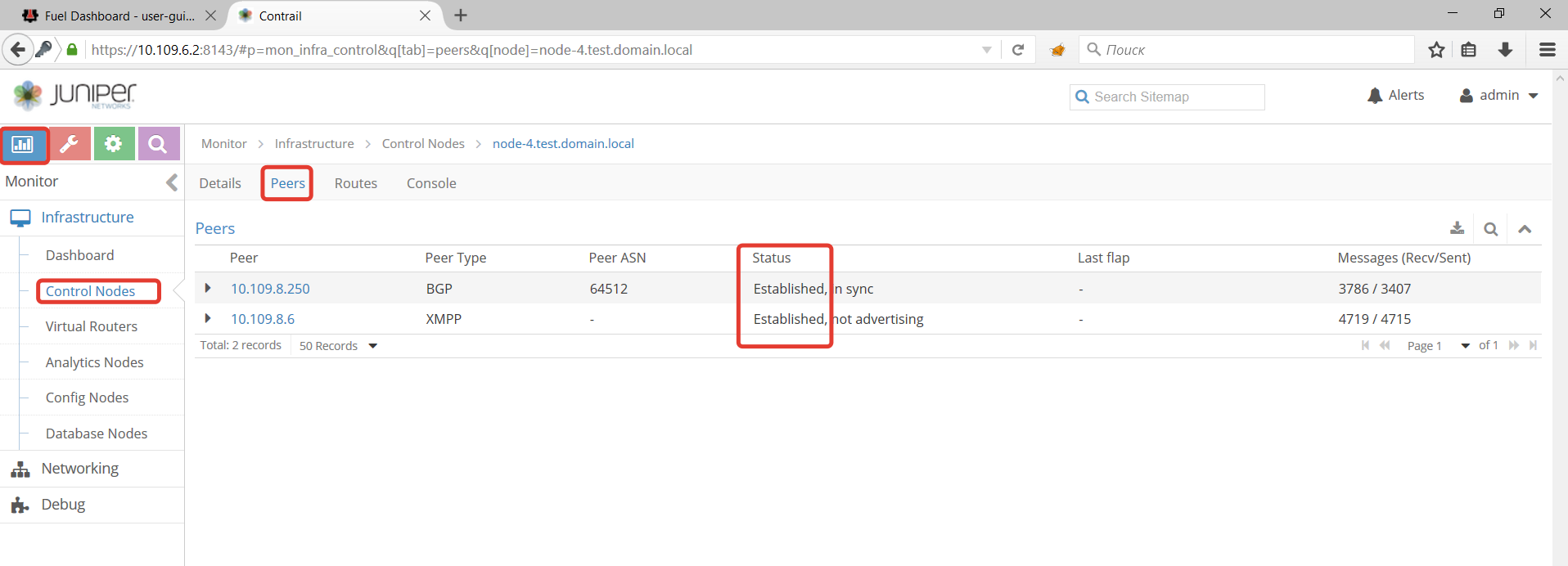
Check that external router was provisioned correctly:
Login to Contrail WebUI, go to Configure -> Infrastructure -> BGP routers. Verify the IP address of router
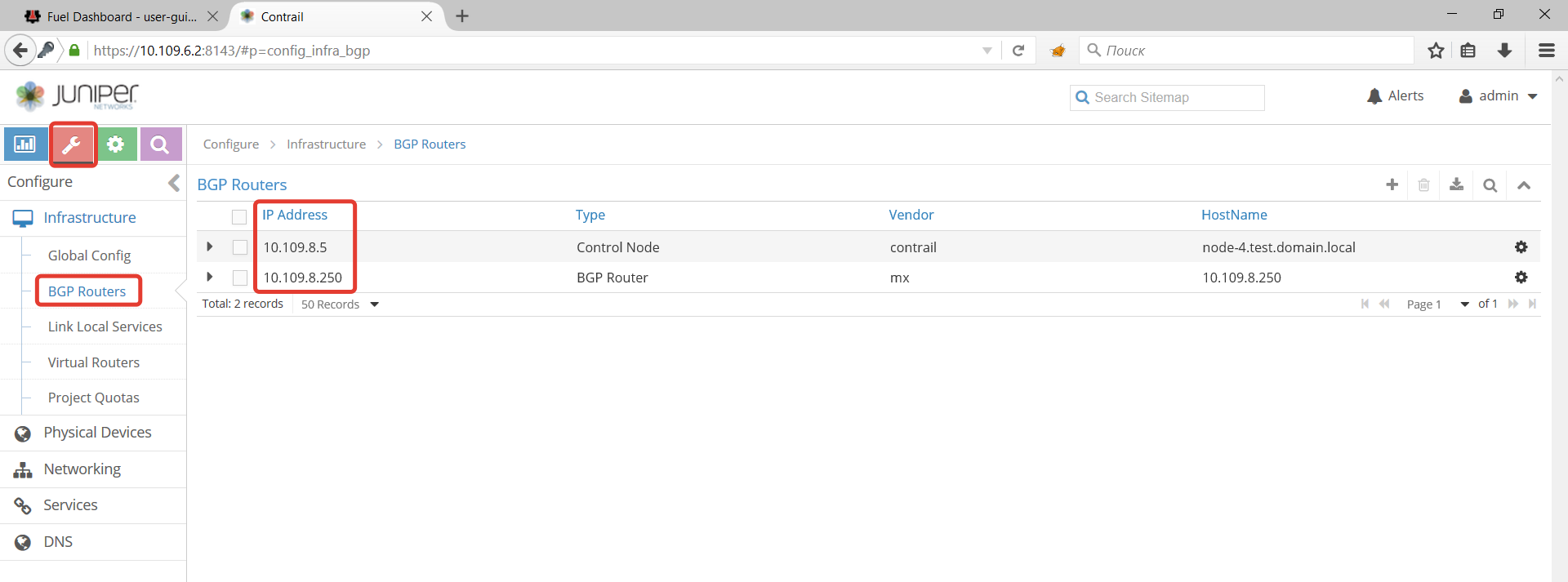
After that you can use health checks in Fuel UI, also called OSTF tests.
9.2. OSTF tests
Prerequisites for OSTF:
- OSTF tests require two pre-defined networks created - net04 and net04_ext. The networks are created by Fuel during deployment. This section includes instructions how to create them if they were accidentally deleted. Floating IP addresses from net04_ext should be accessible from Fuel master node.
- 3 tests from “Functional tests” set require floating IP addresses. They should be configured on external router, routable from Fuel master node and populated in Contrail/Openstack environment.
- HA tests require at least 3 Openstack controllers.
- “Platform services functional tests.” require Ceilometer and Mongo.
OSTF networks and floating IPs configuration:
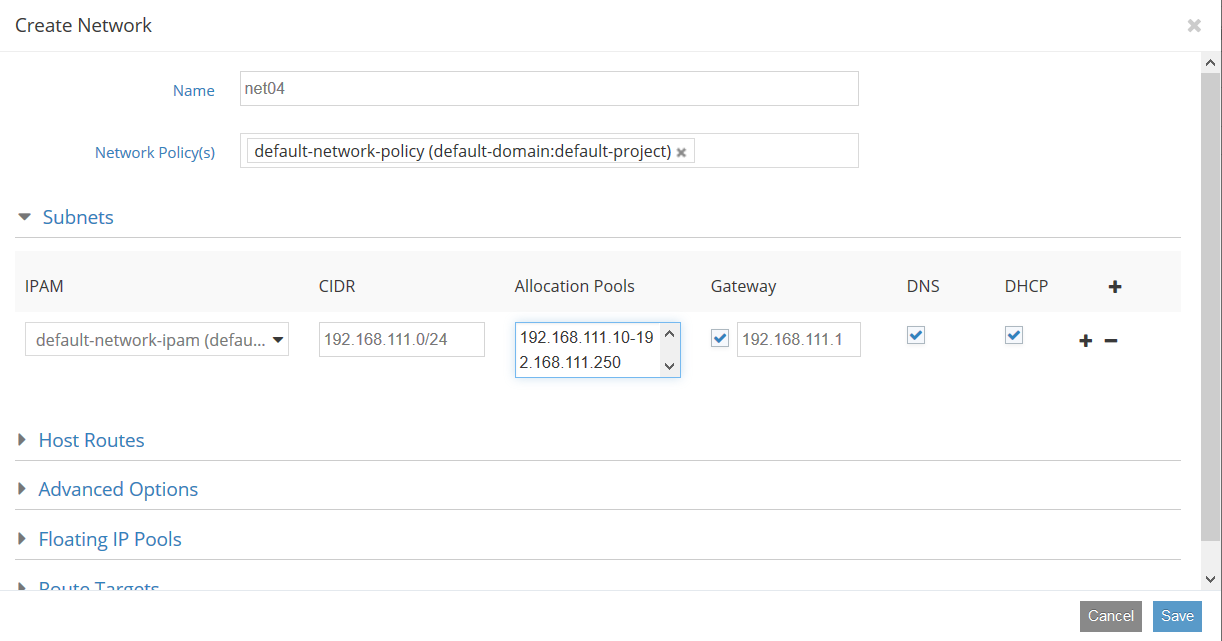
To create networks go to Contrail WebUI -> Configure -> Networking -> Networks
Create network “net04”
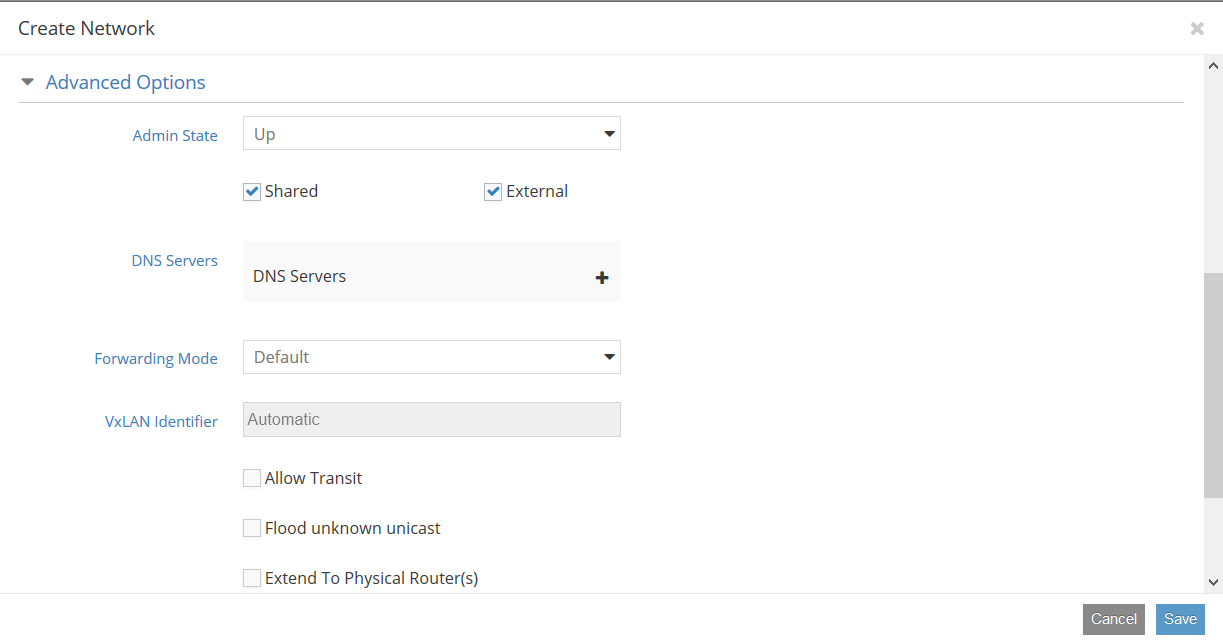
Create network “net04_ext”.
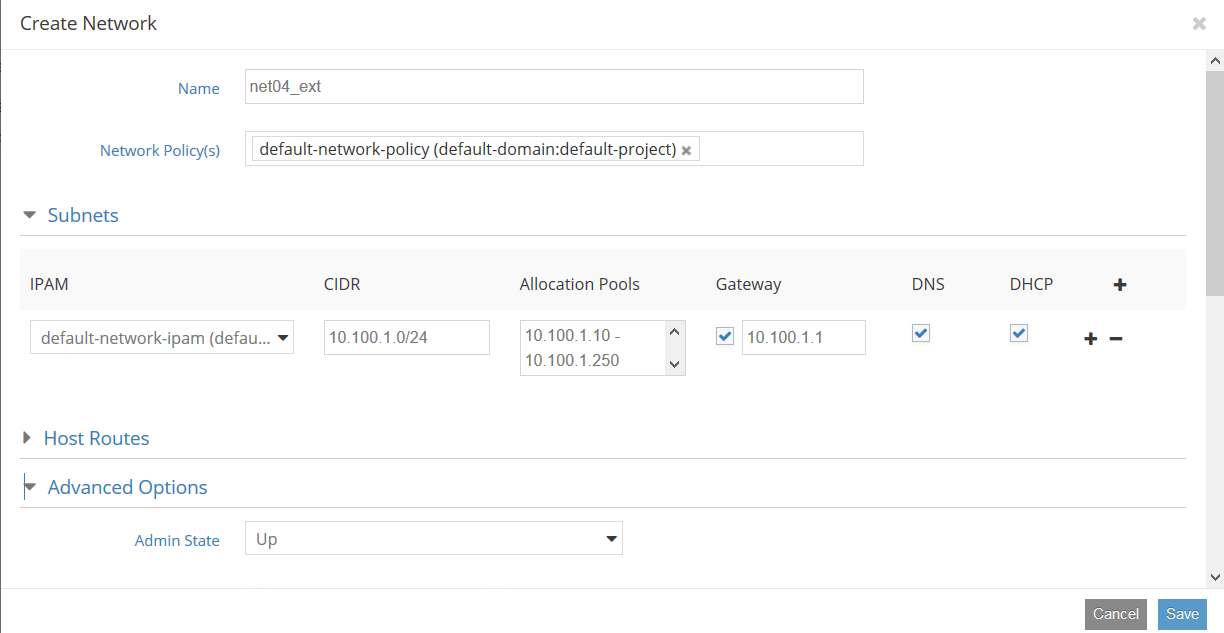
It should be marked as “shared” and “external”
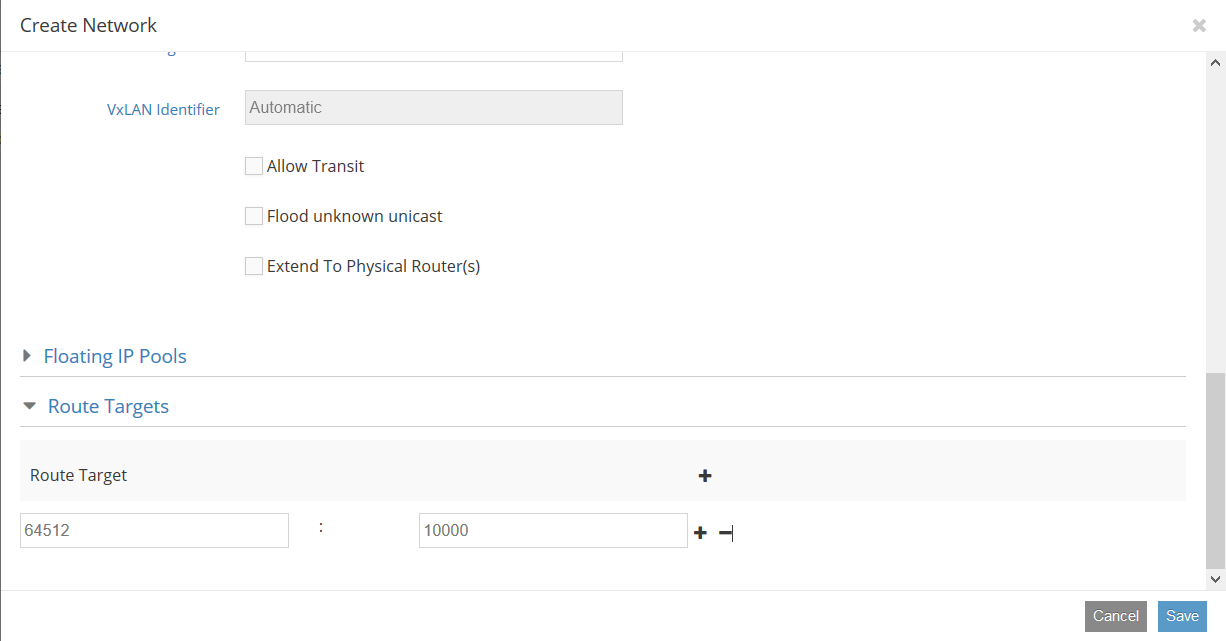
And have same route target as configured in external router
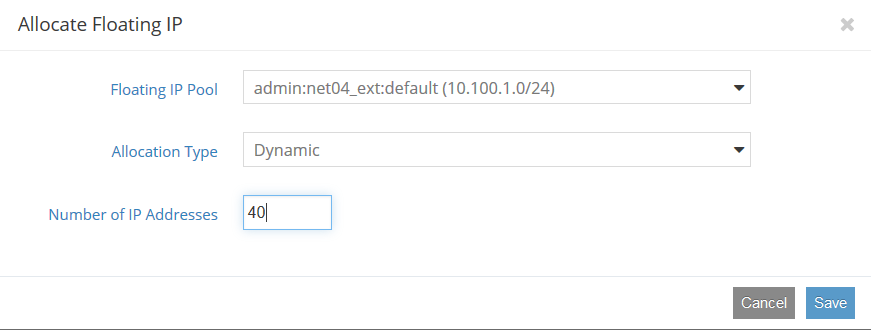
Allocate floating IP addresses from net04_ext
Go to Contrail WebUI –> Configure -> Networking -> Manage Floating IPs
After checking networks and floating IP addresses, start OSTF tests. For more details, refer to Fuel user-guide.
9.3. Troubleshooting
Start with checking output of contrail-status command. Then check the logs for corresponding serivice. Contrail logs are located in /var/log/contrail/ directory, and log names match with contrail service name. Cassandra logs are located in /var/log/cassandra/, zookeeper’s is in /var/log/zookeeper/.