5. Installation Guide
5.1. Prerequisites
This guide assumes that you have installed Fuel and all the nodes of your future environment are discovered and functional.
5.2. Installing Contrail Plugin
Download Contrail plugin from the Fuel Plugins Catalog.
Copy the rpm downloaded at previous step to the Fuel Master node and install the plugin
scp contrail-3.0-3.0.1-1.noarch.rpm <Fuel Master node ip>:/tmp/
Log into the Fuel Master node and install the plugin
ssh <the Fuel Master node ip>
fuel plugins --install contrail-3.0-3.0.1-1.noarch.rpm
You should get the following output:
Plugin <plugin-name-version>.rpm was successfully installed
Copy Juniper contrail install package (obtained from Juniper by subscription, more information can be found on official Juniper Contrail web-site ) to the Fuel Master node and run the installation script to unpack the vendor package and populate plugin repository
scp contrail-install-packages_3.0.0.0-2723~kilo_all.deb \
<Fuel Master node ip>:/var/www/nailgun/plugins/contrail-3.0/
ssh <Fuel Master node ip> /var/www/nailgun/plugins/contrail-3.0/install.sh
5.3. Configuring Contrail Plugin
First, you need to create environment in Fuel UI.
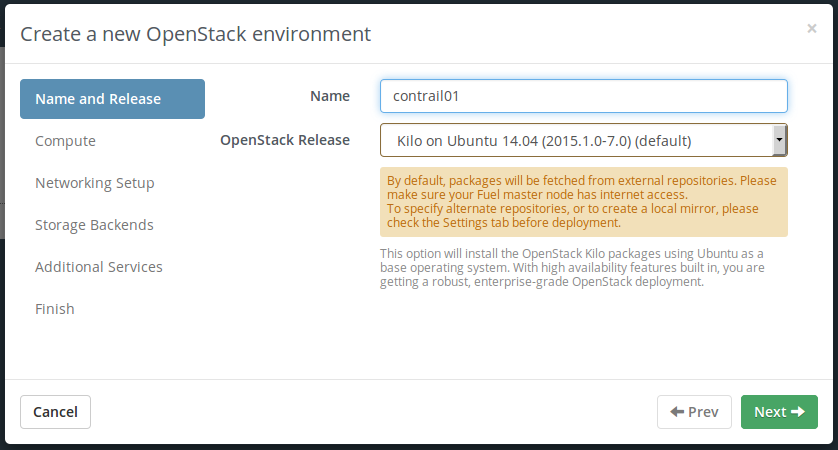
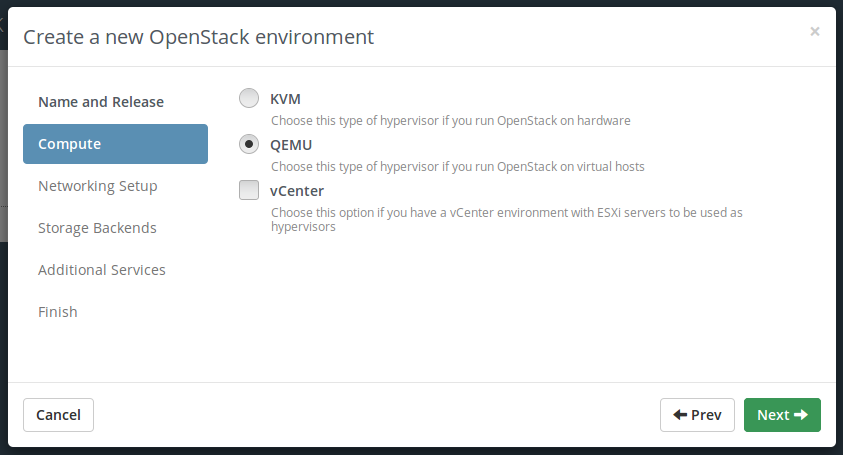
Please select KVM or QEMU hypervisor type for your environment
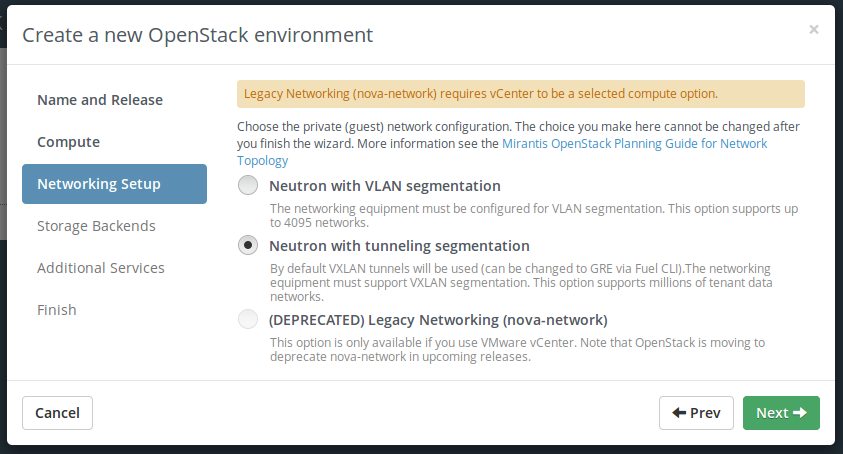
Please select Neutron with tunneling segmentation network model. GRE segmentation is also supported, but you need to set it from Fuel CLI
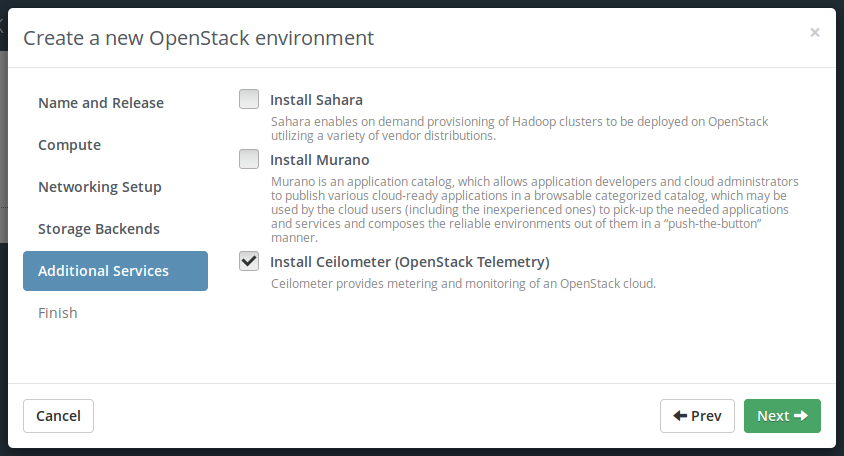
If you plan to use Heat orchestration with autoscaling, you need to install Ceilometer too.
Activate the plugin and fill configuration fields with correct values:
- AS number for BGP Gateway nodes communication: (defaults to 64512).
- Gateway nodes IP addresses (provided as a comma-separated list) - peer addresses for BGP interaction with border routers.
Add nodes and assign them the following roles:
- At least 1 Controller
- At least 1 Compute
- At least 1 node with Contrail-Control, Contrail-Config,Contrail-DB roles selected ( 3 or other odd number of nodes recommended for HA)
- If you plan to use Heat with autoscaling, in addition to Ceilometer you need to add node with MongoDB role
These 3 roles are not necessary need to be on the same node. You can place them on different nodes if needed.
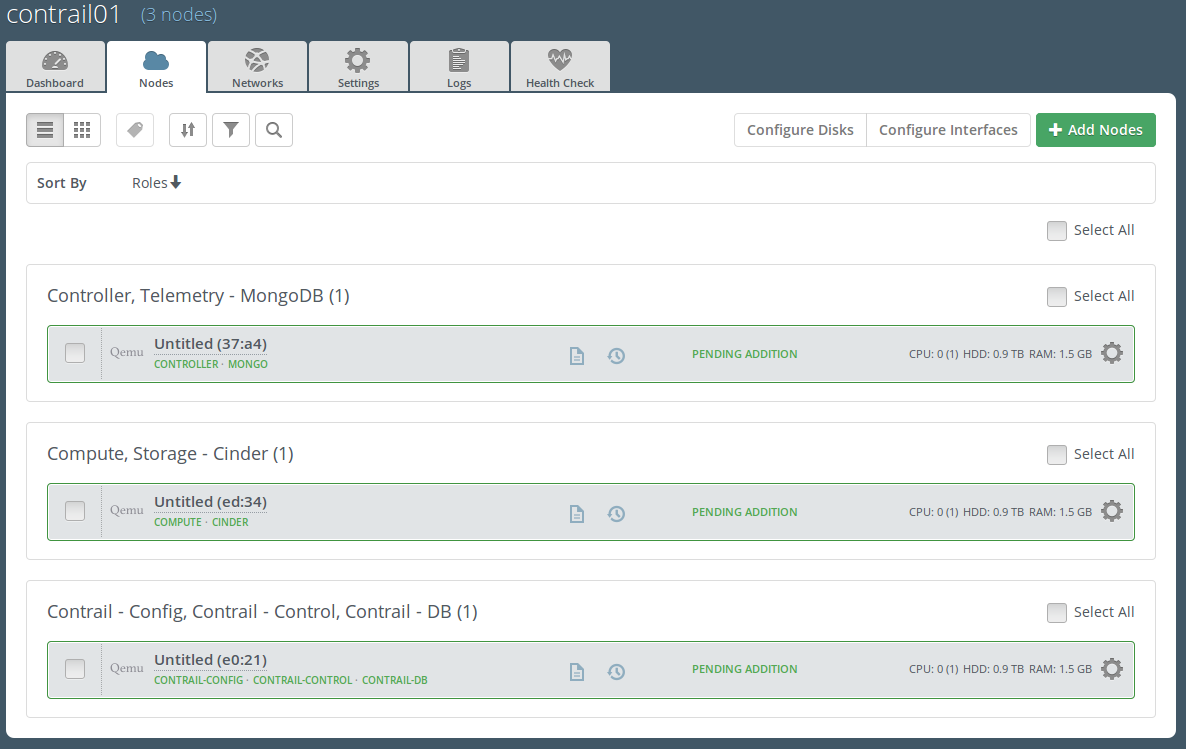
Sample node configuration is provided on a picture below.
Configure the disks on nodes with Contrail-DB role selected. The recommended size of partition for Contrail database is 256 GB or more.
Configure the network settings. See details at Mirantis OpenStack User Guide.
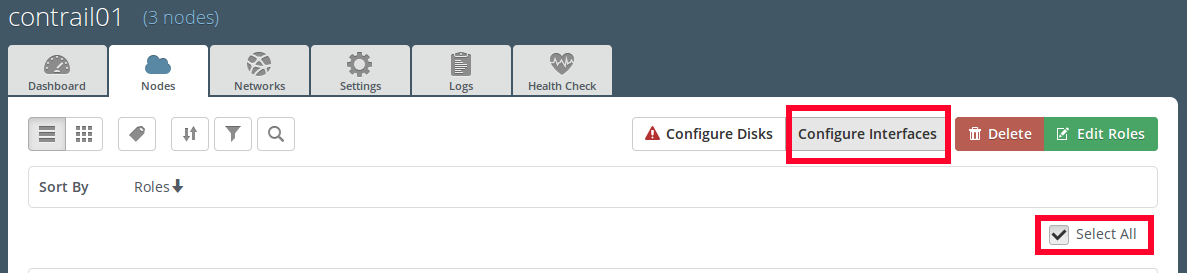
Open Nodes tab: Select all the nodes, push Configure interfaces button
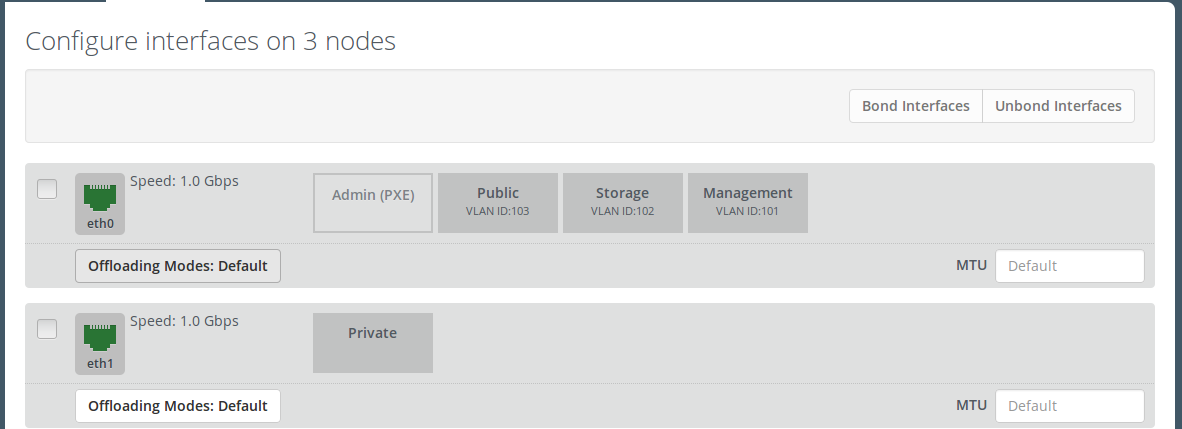
Set Private network to the separate network interface as the untagged network. DO NOT USE THIS PHYSICAL INTERFACE FOR ANY OTHER NETWORK. This interface will be used by contrail vRouter as the untagged port. It is recommended to set the bigger MTU for Private interfaces (e.g. 9000) if the switching hardware supports Jumbo Frames. This will enhance contrail network performance by avoiding packet fragmentation within Private network.
For other networking options please refer to Mirantis OpenStack User Guide. In case of using multiple L2 segments, you may need to configure networking according to the Operations Guide and supply static routes to BGP peers and other cluster networks in network_1.yaml file.
Example network configuration
Hardware servers with two network interfaces are used as openstack nodes. The interfaces configuration is following:
- Public, Management and Storage networks on the same interface with Admin net, using tagged VLANs
- The second interface is dedicated for Contrail operations as untagged (Private network)
Warning
Be sure to launch network verification check before starting deployment. Incorrect network configuration will result in non-functioning environment.
Press Deploy changes to deploy the environment.
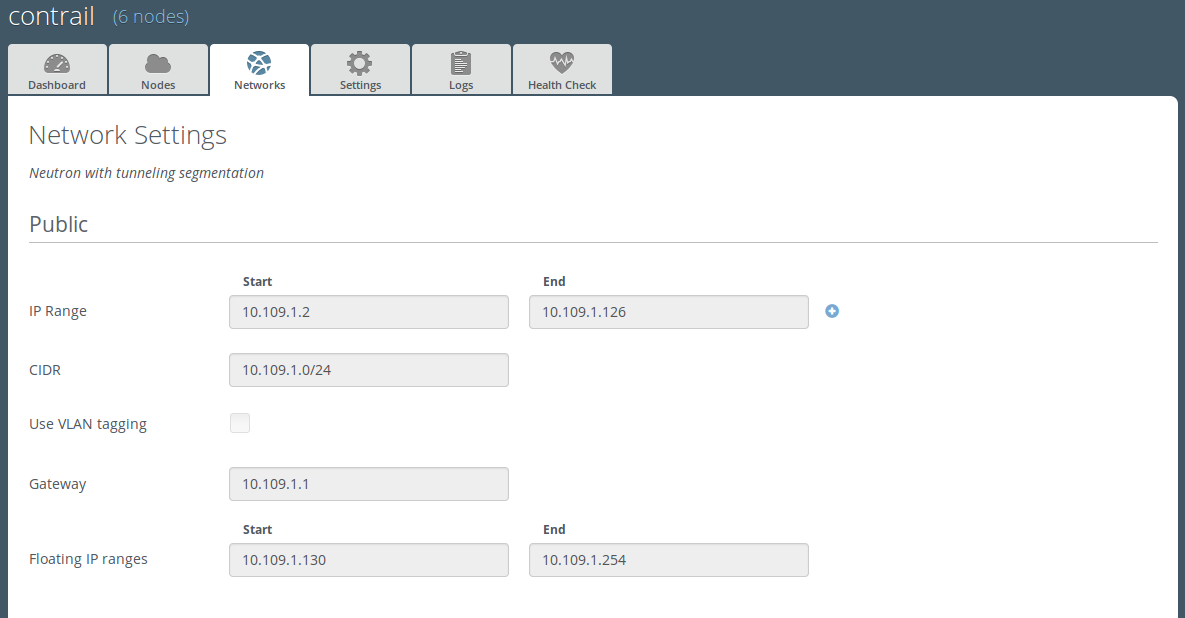
After installation is finished, Contrail Web UI can be accessed by the same IP address as Horizon, but using HTTPS protocol and port 8143. For example, if you configured public network as described on screenshot below, then Contrail Web UI can be accessed by https://10.109.1.3:8143
Warning
First usable addresses from the Private network will be used as VIP for Contrail controllers. For example, if your Private network CIDR is 192.168.200.0/24, then Contrail VIP will be 192.168.200.1.