12. Verify Contrail plugin
To verify your installation after deployment, perform the basic checks described below.
Verify that Contrail services are running.
Login to the Contrail controller node and run
contrail-statuscommand. All services should be in “active” state:# contrail-status == Contrail Control == supervisor-control: active contrail-control active contrail-control-nodemgr active contrail-dns active contrail-named active == Contrail Analytics == supervisor-analytics: active contrail-analytics-api active contrail-analytics-nodemgr active contrail-collector active contrail-query-engine active contrail-snmp-collector active contrail-topology active == Contrail Config == supervisor-config: active contrail-api:0 active contrail-config-nodemgr active contrail-device-manager active contrail-discovery:0 active contrail-schema active contrail-svc-monitor active ifmap active == Contrail Web UI == supervisor-webui: active contrail-webui active contrail-webui-middleware active == Contrail Database == supervisor-database: active contrail-database active contrail-database-nodemgr active kafka active
Verify the list of peers and peering status
- Login to Contrail web UI
- Go to Monitor -> Control nodes
- Choose any and select a Peers tab.
You should see your compute nodes (vRouters) and external router
in a list of peers with status
Established
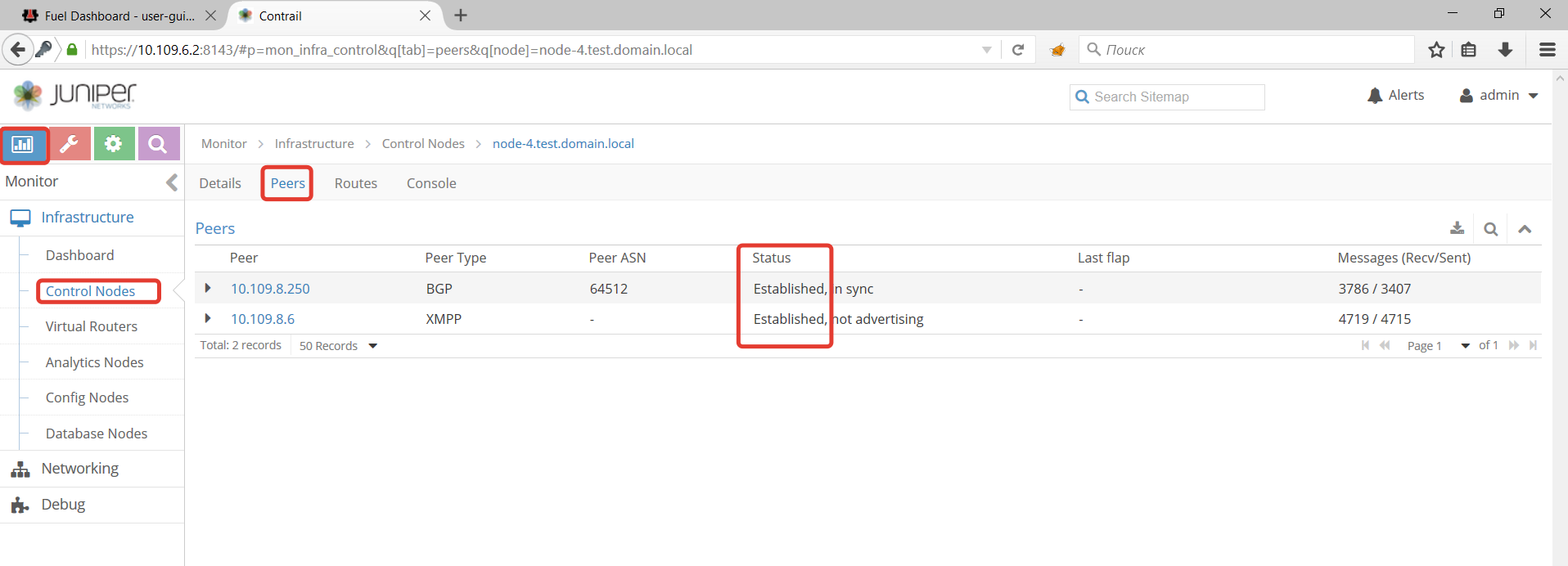
Verify that external router has been provisioned correctly:
- Login to Contrail web UI
- Go to Configure -> Infrastructure -> BGP routers.
- Verify the IP address of the router
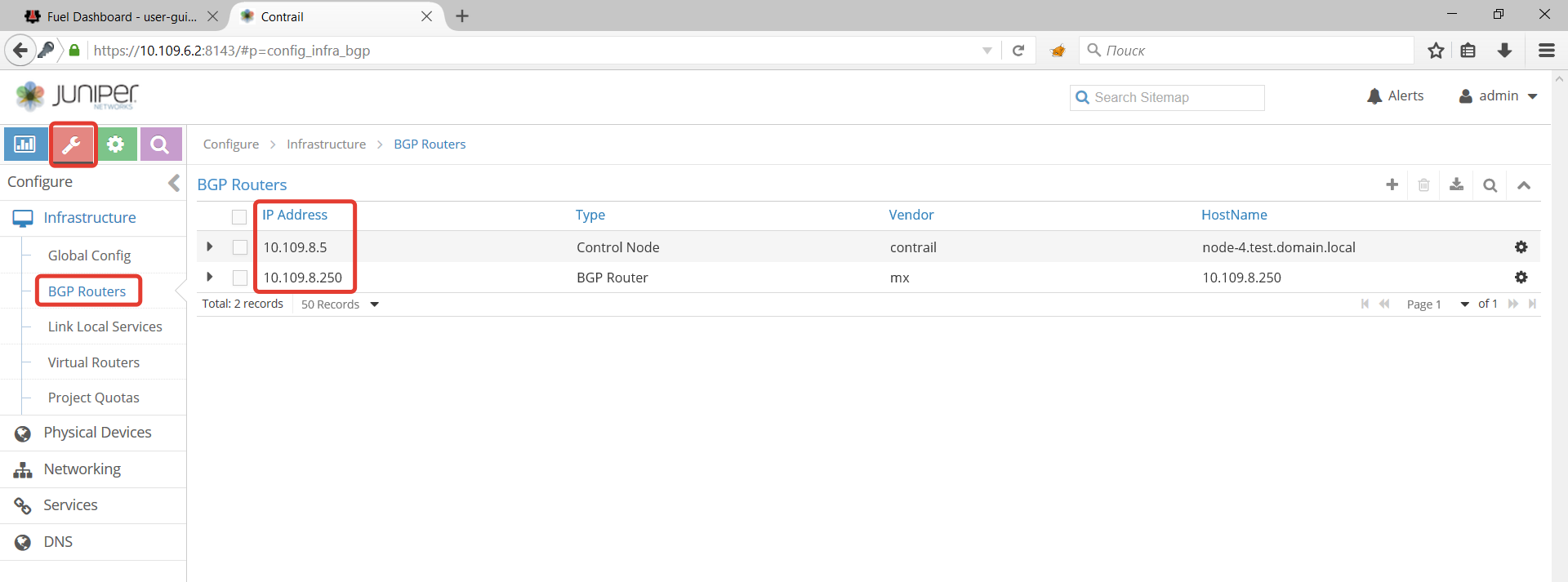
- Use health checks in Fuel web UI, also called OSTF tests.
12.1. Run OSTF tests
12.1.1. Prerequisites for OSTF
- OSTF tests require two pre-defined networks created -
net04andnet04_ext. The networks are created by Fuel during deployment. This section includes instructions how to create them if they were accidentally deleted. Floating IP addresses from net04_ext should be accessible from Fuel master node.- Three tests from
Functional testsset require floating IP addresses. They should be configured on external router, routable from Fuel master node and populated in the Openstack with Contrail environment.- HA tests require at least three Openstack controllers.
Platform services functional tests.require Ceilometer and MongoDB.
12.1.2. Configure OSTF networks and floating IPs
To configure OSTF networks and floating IPs:
Go to Contrail web UI Configure -> Networking -> Networks
Create network
net04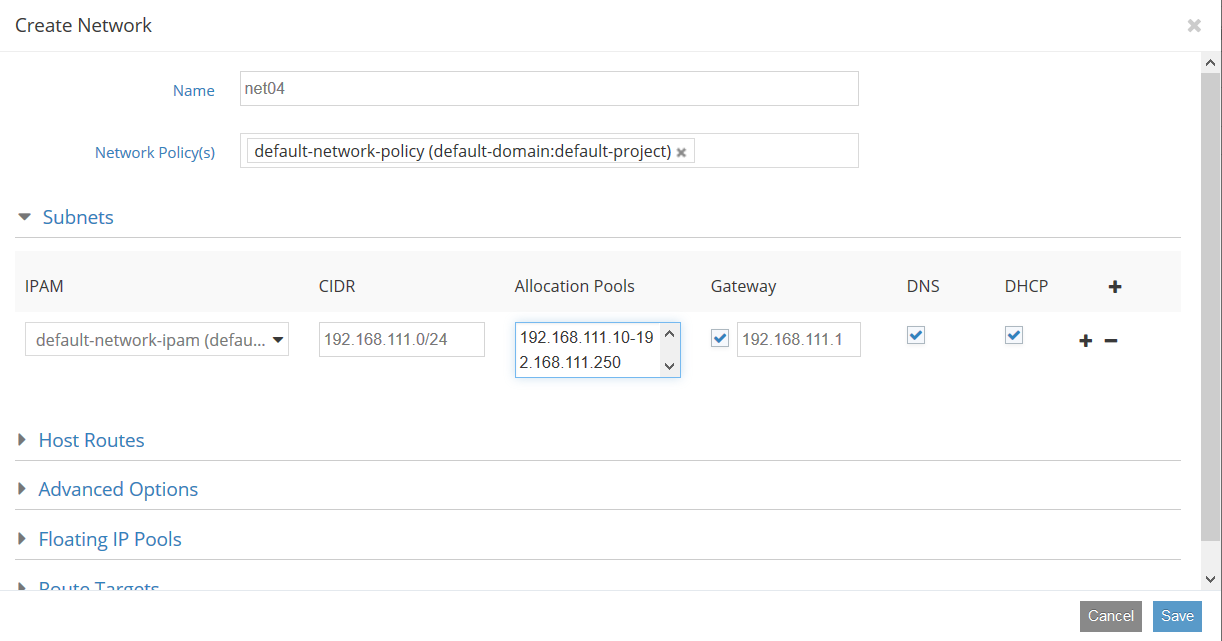
Create network
net04_ext.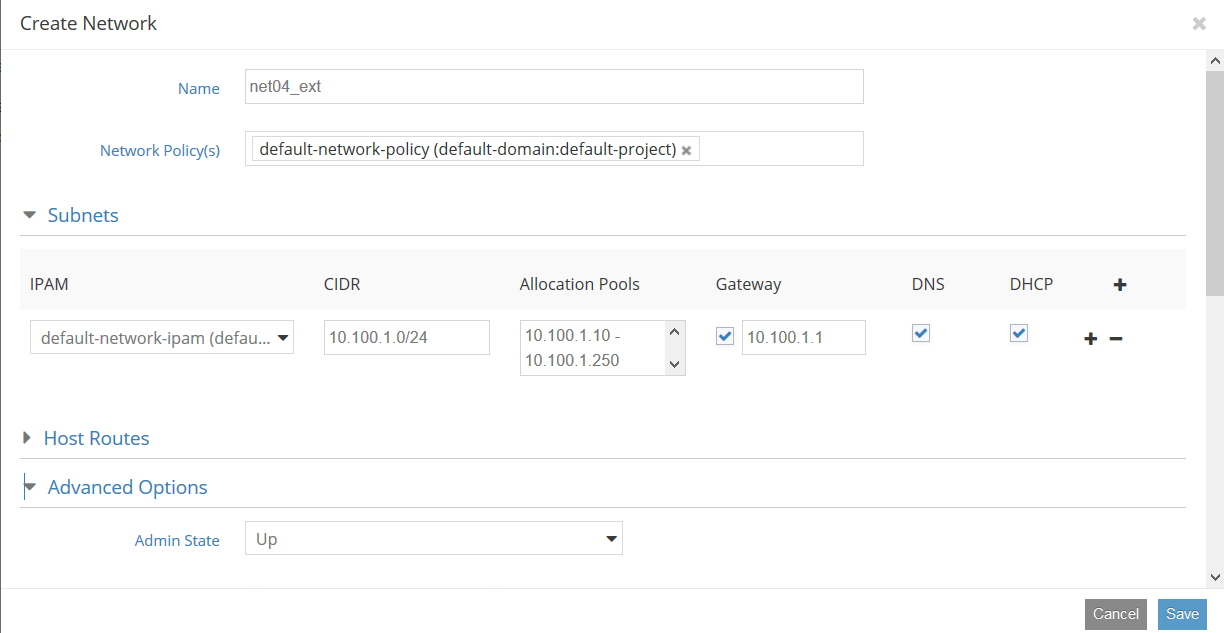
It should be marked as
sharedandexternal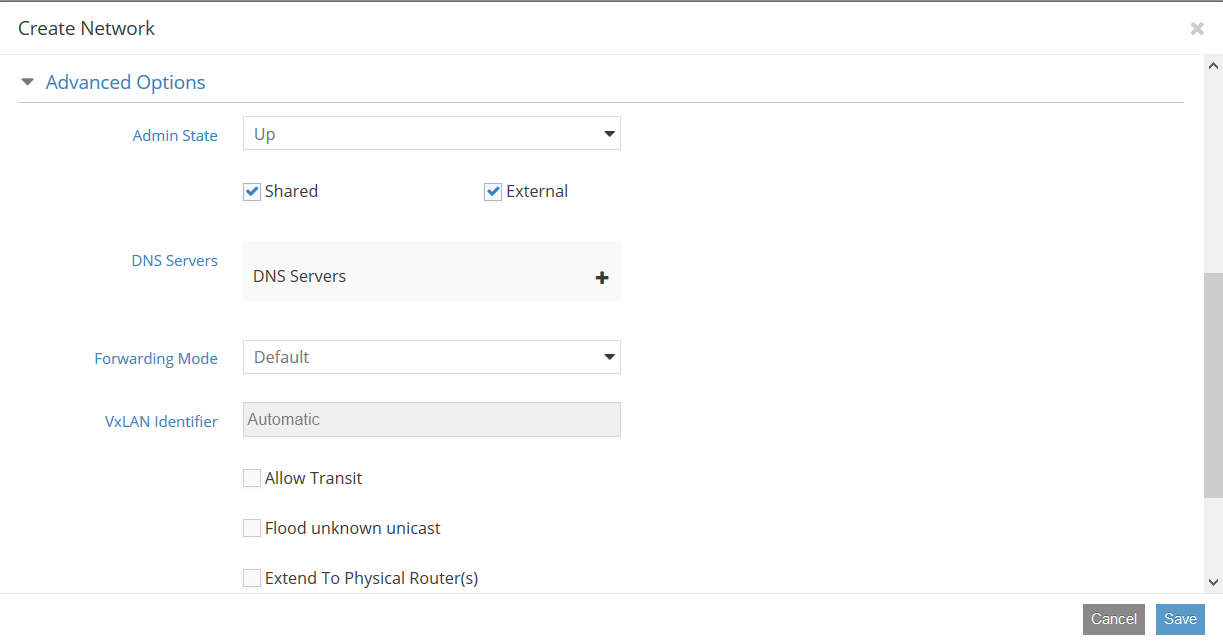
And have same route target as configured in an external router
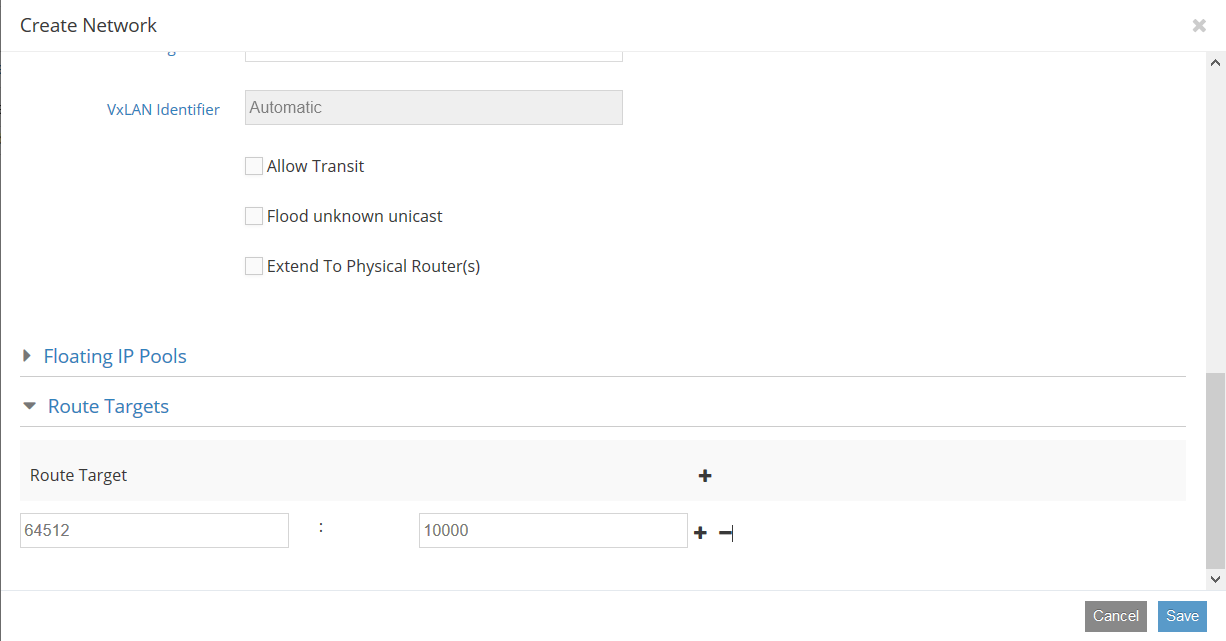
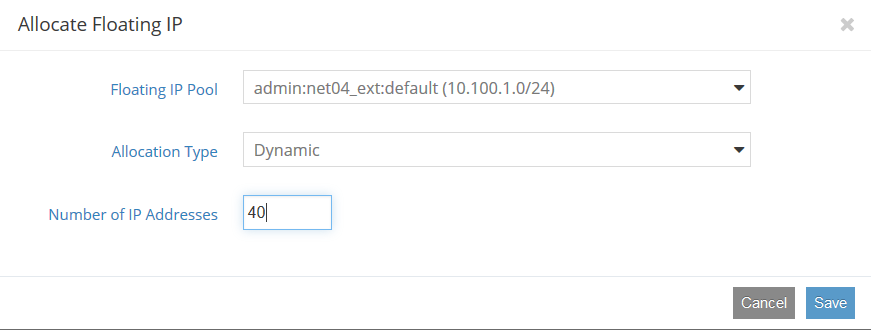
Allocate floating IP addresses from
net04_extGo to Contrail WebUI Configure -> Networking -> Manage Floating IPs
Start OSTF tests.
See also
12.2. Troubleshooting
To troubleshoot:
- Verify output of the
contrail-statuscommand. - Verify the logs for corresponding serivice:
- Contrail logs are located in
/var/log/contrail/directory, and log names match with contrail service name. - Cassandra logs are located in
/var/log/cassandra/ - Zookeeper logs are in
/var/log/zookeeper/
- Contrail logs are located in